
Windows 10 Pro for Workstations
Ultimate performance for advanced workloads – support for server‑grade hardware, massive memory, and resilient storage for data scientists, creators, and engineers

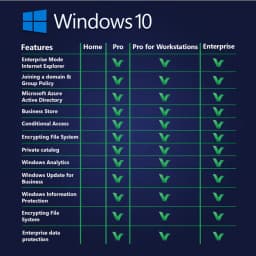
Overview
How It Works
1. UEFI & Boot with Persistent Memory
The UEFI firmware enumerates Persistent Memory (NVDIMM‑N) modules alongside regular RAM and storage. The boot loader maps these into the physical address space, making them accessible as byte‑addressable memory or as a fast block device (in App Direct mode).
2. Kernel & NUMA Initialisation
The kernel detects multiple CPU sockets and configures Non‑Uniform Memory Access (NUMA) nodes. Each CPU socket has its own local memory. The scheduler tries to keep threads on the same node to avoid cross‑socket latency – critical for performance on 4‑socket workstations.
3. Resilient File System (ReFS) Volume Mount
If the system drive or data volumes use ReFS, the file system driver performs a fast integrity check using checksums stored in metadata. Corrupt data is automatically repaired from redundant copies (if using Storage Spaces mirroring) without unmounting the volume – zero downtime.
4. Workstation Mode Power Plan
The OS activates the Workstation Mode power plan (unless overridden). This disables core parking, keeps CPU at high performance, and favours throughput over energy savings. Background tasks like Windows Update are further throttled compared to Pro.
5. SMB Direct (RDMA) Service
The SMB Direct service initialises RDMA‑capable network adapters (RoCE, iWARP, or InfiniBand). Data can be moved directly from application memory to network adapter memory, bypassing the CPU and system memory bus – achieving near‑wire‑speed transfers with very low CPU usage.
6. Large Memory & Page File Management
With support for up to 6 TB of RAM, the memory manager uses large pages (2 MB or 1 GB) to reduce TLB misses. The page file is sized accordingly but is rarely touched. On systems with Persistent Memory in 'Memory Mode', the OS sees it as main memory.
7. Hyper‑V with Nested Virtualisation & DDA
Hyper‑V (same as Pro) but with full support for Discrete Device Assignment (DDA) – you can pass an entire GPU, NVMe drive, or RDMA network card directly to a virtual machine for near‑bare‑metal performance. Nested virtualisation runs Hyper‑V inside a VM for testing.
Key Features
Resilient File System (ReFS)
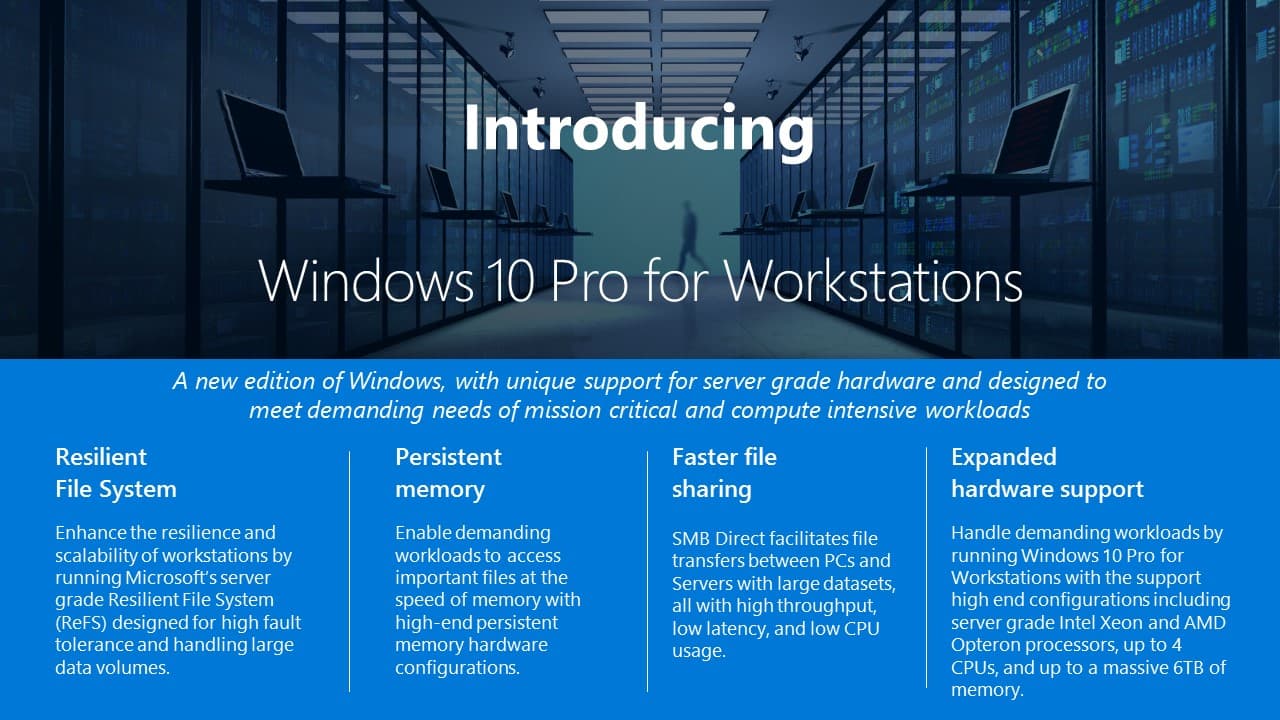
Self‑healing file system with integrity streams, automatic corruption repair (via Storage Spaces), and support for volumes up to 1 yottabyte. Ideal for large data archives, backups, and high‑availability storage.
Persistent Memory (NVDIMM‑N) Support
Byte‑addressable, non‑volatile RAM modules. Creates DAX volumes for ultra‑low latency, reboot‑persistent storage. Perfect for in‑memory databases, real‑time analytics, and VM fast resume.
SMB Direct (RDMA)
Remote Direct Memory Access networking bypasses the CPU and TCP stack. Achieves line‑rate throughput (100 GbE) with microsecond latency and near‑zero CPU overhead. Essential for high‑end NAS and clustered storage.
Massive RAM & CPU Support
Supports up to 6 TB of RAM (4‑socket workstations) and 4 physical CPU sockets (up to 256 logical cores). Workstation Mode power plan keeps cores always active for predictable low latency.
Hyper‑V with DDA & Nested Virtualisation
Pass entire GPUs, NVMe drives, or RDMA NICs directly to virtual machines. Run Hyper‑V inside a VM for testing. Ideal for GPU‑accelerated containers or lab environments.
Workstation Mode Power Plan
Optimises CPU scheduling and power policy for compute‑intensive workloads. Disables core parking, favours performance, and reduces background activity.
All Pro Features Included
BitLocker, Remote Desktop Host, Hyper‑V, Group Policy, Windows Sandbox, Assigned Access, Windows Update for Business, and Client Hyper‑V with nested virtualisation.
Storage Spaces & Mirror‑Accelerated Parity
Create tiered storage (SSD + HDD) with both mirror and parity spaces. ReFS integrates with Storage Spaces for automatic repair. Supports up to 64 PB per storage pool.
Large Memory Page Support
Automatically uses 2 MB large pages (and optionally 1 GB huge pages) to reduce TLB misses, improving performance for memory‑intensive applications like SQL Server, SAP HANA, and in‑memory analytics.
ReFS (Resilient File System): Data Integrity at Scale
Self‑healing, corruption‑detecting file system for large volumes
Integrity Streams & Checksums
Unlike NTFS, ReFS stores a separate checksum for every file metadata and, optionally, for file data. On every read, the checksum is verified. If a mismatch is found, ReFS automatically retrieves a correct copy from a Storage Spaces mirror or parity volume – completely transparent to the application.
Automatic Repair & Salvage
If corruption cannot be repaired (e.g., no redundant copy), ReFS 'salvages' the rest of the data and logs the error. The volume remains online. This is ideal for large archival stores or databases where downtime is unacceptable.
Scalability Beyond NTFS
ReFS supports 1 yottabyte (2^80 bytes) file sizes and volumes – far beyond any current hardware. Maximum file size: 35 PB (petabytes) on Windows 10 Workstation (theoretical limit is exabytes). Directory size: unlimited (up to volume capacity).
Spare & Drive Pooling
When used with Storage Spaces, ReFS can automatically 'heal' by using spare storage. It also supports mirror‑accelerated parity (tiered spaces) for a blend of performance and capacity. Workstation edition includes these features (unlike Pro, which has limited Storage Spaces).
Limitations vs NTFS
ReFS does not support compressed files, Encrypting File System (EFS), disk quotas, hard links (except for file‑level links), or extended attributes. It is not bootable (system drive must be NTFS). Best used for data volumes, not the OS drive.
Persistent Memory (NVDIMM‑N): The Best of RAM and SSD
Byte‑addressable storage that retains data across reboots – super low latency
What is NVDIMM‑N?
Non‑Volatile Dual Inline Memory Module – a DIMM that behaves like DRAM (byte‑addressable, nanosecond latency) but retains data when power is lost. Comes in two modes: Memory Mode (treated as main RAM, but slower) and App Direct (exposed as a fast block device or DAX volume).
DAX (Direct Access) Volumes
In App Direct mode, you create a DAX volume – a file system that maps directly to persistent memory without page caching. Applications can use `mmap()` to access PMem without system call overhead, achieving microsecond persistence. Perfect for in‑memory databases (SQL Server Hekaton, Aerospike).
Instant Reboot & Recovery
Because PMem retains data, a virtual machine saved to a DAX volume can be resumed instantly after a reboot. Similarly, large caches or indexes survive restarts – minutes of loading time saved.
Supported Hardware
Requires Intel Xeon Scalable or AMD EPYC with NVDIMM‑N modules (e.g., Intel Optane Persistent Memory). Windows 10 Pro for Workstations automatically detects and manages interleaved sets and namespaces via PowerShell (`Get-PmemDisk`, `New-PmemDisk`).
SMB Direct (RDMA): Ultra‑Fast Networking
Bypass the CPU and TCP stack for high‑throughput, low‑latency file access
How RDMA Works
Remote Direct Memory Access (RDMA) network adapters (Mellanox, Chelsio, Broadcom) allow data to be transferred directly between application memory buffers without copying data into kernel memory or using the CPU for packet processing. SMB Direct uses RDMA to accelerate file transfers.
Performance Gains
On 100GbE networks, SMB Direct can saturate the link (≈12 GB/s) with less than 5% CPU usage. Latency can be as low as 2‑3 microseconds. This is essential for video editing over the network (multi‑stream 8K), live VM migration, or accessing a remote NVMe‑over‑Fabrics (NVMe‑oF) target.
Multi‑Channel & Failover
SMB Direct automatically uses multiple RDMA network interfaces simultaneously for load balancing and failover. If one port loses link, traffic moves seamlessly to another – no interruption to open files.
No Special Configuration
Once RDMA network adapters are installed and drivers loaded, SMB Direct is automatically enabled. You can verify with `Get-SmbClientNetworkInterface` in PowerShell. Shares are accessed via standard UNC paths (e.g., `\\server\share`).
Massive Memory & CPU Support
Up to 6 TB RAM, 4 physical CPU sockets, 256 logical cores
6 TB RAM Ceiling
Windows 10 Pro for Workstations supports 6 TB of physical memory (RAM) on 64‑bit systems – 3× more than Windows Server 2019 Standard (which caps at 4 TB for the OS). This is 48× more than Pro (128 GB) and 3,000× more than Home (2 GB for 32‑bit).
4 CPU Sockets
Unlike Pro (2 sockets) and Home (1 socket), Workstation edition supports up to 4 physical CPU sockets. Combined with hyper‑threading and up to 64 cores per socket (e.g., AMD EPYC 9004 series), that’s up to 256 logical processors. The scheduler distributes threads across NUMA nodes intelligently.
Large Page Support
The memory manager automatically uses 2 MB 'large pages' for allocations above 2 MB, reducing Translation Lookaside Buffer (TLB) misses. For extreme workloads, 1 GB 'huge pages' are available via Group Policy or `bcdedit /set increaseuserva`. This improves performance for databases and in‑memory analytics.
Workstation Mode Power Plan
This exclusive power plan keeps all CPU cores active (no parking), raises timer resolution, and prioritises compute tasks over background maintenance. It also disables core sleeping (C‑states) to reduce latency. You can select it from Power Options or via `powercfg /setactive e9a42b02-d5df-448d-aa00-03f14749eb61`.

Hyper‑V Enhancements: DDA & Nested Virtualisation
Pass through GPUs, NVMe drives, and RDMA NICs to VMs
Discrete Device Assignment (DDA)
DDA allows you to dedicate a PCIe device (GPU, NVMe SSD, RDMA network card) to a single virtual machine. The VM gets full, direct access to the hardware – no hypervisor overhead. This enables GPU‑accelerated machine learning inside a VM or high‑performance storage for a database server.
How to Configure DDA
Use PowerShell: `Disable-PnpDevice` on the host for the PCIe device, then `Dismount-VmHostAssignableDevice`, then `Add-VMAssignableDevice`. The VM must be shut down during assignment. Requires a host that supports SR‑IOV and Access Control Services (ACS).
Nested Virtualisation
Run Hyper‑V inside a Hyper‑V virtual machine – perfect for testing virtualisation setups, running container hosts, or simulating a multi‑server environment on a single workstation. Nested VM performance is good on CPUs with Intel VT‑x and EPT (most modern Xeon/EPYC).
Virtual Machine Platform & WSL2
Like Pro, Workstation edition includes WSL2 and the Virtual Machine Platform. The extra CPU and RAM headroom allows you to run multiple heavy Linux VMs (or WSL2 distributions) simultaneously without slowing down the host.
All Pro Features (BitLocker, RDP Host, Group Policy)
Everything from Windows 10 Pro, plus the workstation extras
BitLocker & BitLocker To Go
Full AES encryption for system and removable drives. Workstation adds support for encrypting ReFS volumes (though ReFS is typically used for data integrity, not encryption – you can combine with BitLocker for both).
Remote Desktop Host
Accept inbound RDP connections. On a 4‑CPU workstation, remote sessions benefit from NUMA awareness. Multiple concurrent sessions are not allowed (still single user), but you can connect remotely while someone uses the console locally.
Group Policy Management
Local and domain GPOs. Workstation edition adds policies for ReFS (e.g., 'Enable integrity streams by default'), Persistent Memory configuration, and RDMA settings.
Pros
- ✓ReFS provides automatic data integrity and self‑healing – priceless for long‑term storage and critical data
- ✓Persistent Memory support bridges the gap between RAM and SSDs – insane speed for databases and VMs
- ✓6 TB RAM & 4 CPUs – can run several heavy virtual machines or in‑memory databases on one workstation
- ✓SMB Direct (RDMA) enables remote file access as fast as local NVMe – revolutionises networked workflows (video editing, genomics)
- ✓Discrete Device Assignment (DDA) in Hyper‑V allows GPU pass‑through to VMs – perfect for machine learning or CAD in isolated environments
- ✓Workstation Mode keeps latency low and predictable – no unexpected core parking
- ✓Same application compatibility as Pro – all Windows software runs fine, including games and creative apps
- ✓Storage Spaces + ReFS create a highly resilient, expandable storage pool that rivals dedicated NAS devices
- ✓Can be used as a lightweight server (e.g., SQL Server, file server) without paying for Windows Server licence (though with a 20‑device connection limit)
- ✓Includes all Pro business features – BitLocker, Remote Desktop Host, Group Policy
Cons
- ✗Very expensive – $309 USD, and requires equally expensive hardware (Xeon/EPYC, registered ECC RAM, NVDIMMs, RDMA NICs)
- ✗Overkill for 99% of users – even most developers and creators don’t need 6 TB RAM or 4 CPU sockets
- ✗ReFS cannot be used for boot drive – OS must run on NTFS, limiting its use to data volumes only
- ✗ReFS lacks some NTFS features – no compression, EFS, disk quotas, or hard links (though it has block cloning)
- ✗Persistent Memory hardware is still niche and costly – Intel Optane PMem modules cost thousands of dollars
- ✗SMB Direct requires RDMA network cards and switches – not common in small offices or home setups
- ✗Limited to 1 concurrent remote user (like Pro) – cannot host multiple RDP sessions without Windows Server
- ✗Support ends October 14, 2025 – same as all Windows 10 editions
- ✗Some features require specific Windows Server counterpart – e.g., Storage Replica is not included (needs Server 2019/2022)
- ✗Very few pre‑built workstations ship with this edition – often you must upgrade from Pro yourself
- ✗No native support for non‑volatile memory express over fabrics (NVMe‑oF) target – can act as initiator, not target
Use Cases
Hidden & Useful Shortcuts
Master Windows 10 with these time‑saving keyboard shortcuts
Open or close Start Menu
Open Action Centre (notifications & quick settings)
Show or hide desktop (minimise/restore all windows)
Open File Explorer
Open Windows Settings
Lock your PC or switch accounts
Minimise all windows
Restore minimised windows
Choose projection mode (duplicate, extend, second screen only)
Open Run dialog – type `gpedit.msc` for Group Policy, `virtmgmt.msc` for Hyper‑V Manager
Open Windows Search
Open Ease of Access / Accessibility settings
Open Quick Link (power user) menu – includes Disk Management, Event Viewer, and Windows Terminal (Pro)
Open Task View (virtual desktops & timeline)
Switch input language and keyboard layout
Open emoji and kaomoji panel
Peek at desktop temporarily
Minimise all but the active window
Snap windows: left/right halves, maximise, or minimise
Move a window to another monitor
Open or switch to the app pinned at that taskbar position
Create a new virtual desktop
Close the current virtual desktop
Switch between virtual desktops
Open Xbox Game Bar (screenshot, recording, performance overlay)
Start / stop screen recording (Game Bar)
Take full‑screen screenshot and save to Pictures\Screenshots
Take screenshot of the active window (copies to clipboard)
Open Snip & Sketch for custom screenshot (rectangle, freeform, window, fullscreen)
Open clipboard history (must be enabled in Settings)
Open emoji panel (alternative to Win + .)
Open Connect quick action (wireless displays and audio devices)
Open dictation / voice typing
Turn on On‑Screen Keyboard
Zoom in or out using Magnifier
Close Magnifier
Open Feedback Hub
Open Task Manager directly
View open apps (stays on screen after releasing keys)
Switch between open apps
Close the current window or browser tab
Reopen the last closed browser tab
Rename selected file / folder
Refresh the active window
Undo an action
Redo an action
Create a new folder in File Explorer
Open Properties for selected item
Permanently delete a file (bypass Recycle Bin)
Open System Properties (About page)
Launch Local Group Policy Editor (Pro only)
Launch Hyper‑V Manager (Pro only)
Launch Local Security Policy (Pro only)
Launch Resultant Set of Policy (Pro)
Technical Specifications
| Architecture | 64‑bit only (x86‑64); no 32‑bit support in Workstation edition |
| Processor | 1 GHz or faster; supports up to 4 physical sockets, up to 256 logical cores (64 cores per socket with hyper‑threading) |
| RAM | Minimum 4 GB; maximum 6 TB (requires Windows 10 Pro for Workstations licensed and 64‑bit CPU with >44‑bit physical address extension) |
| Storage | System drive: NTFS, minimum 64 GB. Data volumes: ReFS or NTFS; supports Storage Spaces (tiered, mirror, parity) |
| Graphics | DirectX 12 compatible; DDA requires GPU that supports PCIe ACS and SR‑IOV (most workstation GPUs like NVIDIA Quadro RTX, AMD Radeon Pro) |
| Display | Minimum 800x600; recommended 1920x1080 or higher (multi‑monitor up to 4K/8K via Quadro) |
| Persistent Memory | Requires Intel Optane Persistent Memory (DDR‑T) or NVDIMM‑N modules on compatible Xeon/EPYC platforms |
| RDMA Networking | Requires network adapters supporting RoCE (RDMA over Converged Ethernet), iWARP, or InfiniBand (Mellanox ConnectX series, Chelsio T5/T6, Broadcom NetXtreme) |
| ReFS | Available only on Pro for Workstations and Windows Server; cannot boot from ReFS |
| TPM | TPM 2.0 optional (for BitLocker, not required for ReFS or PMem) |
| Virtualisation | Intel VT‑x/EPT or AMD‑V/RVI required for Hyper‑V; DDA requires ACS and IOMMU |
| Internet | Required for initial setup, updates, and Microsoft account features |
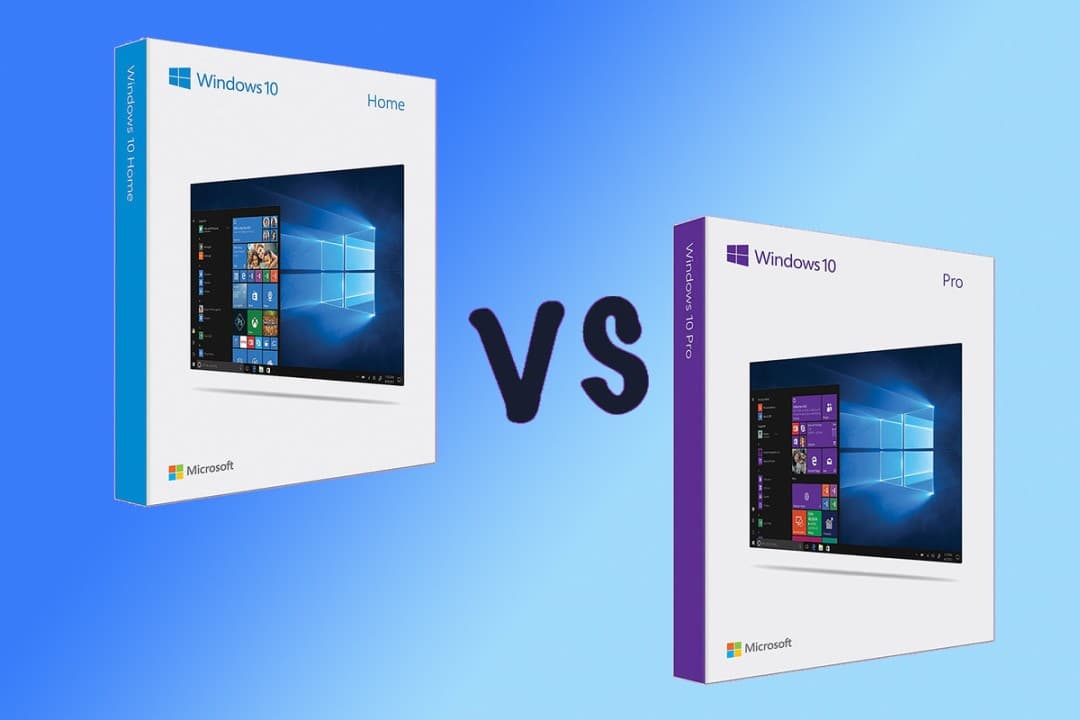
Windows 10 Pro for Workstations vs Windows 10 Pro vs Windows 10 Home
| Feature | workstation | pro | home |
|---|---|---|---|
| Max RAM (64‑bit) | 6 TB | 2 TB | 128 GB |
| Physical CPU Sockets | 4 sockets | 2 sockets | 1 socket |
| ReFS (Resilient File System) | Yes (full support) | No (read‑only) | No |
| Persistent Memory (NVDIMM‑N) | Yes (DAX volumes) | No | No |
| SMB Direct (RDMA) | Yes | No | No |
| Workstation Mode Power Plan | Yes | No | No |
| Hyper‑V Discrete Device Assignment (DDA) | Yes | No (only Pro for Workstations and Enterprise) | No |
| Large Page / Huge Page Memory Support | Yes (1 GB pages configurable) | Up to 2 MB only | Up to 2 MB only |
| Storage Spaces (Tiered & Mirror‑Accelerated Parity) | Full | Limited (no parity tiering) | Very basic (simple/mirror) |
| BitLocker Drive Encryption | Yes | Yes | No |
| Remote Desktop Host | Yes | Yes | No |
| Hyper‑V Virtualisation | Yes (with nested virt) | Yes | No |
| Group Policy Management | Yes (local & domain) | Yes | No |
| Windows Sandbox | Yes | Yes | No |